Clean Computer = Cool Performance
A computer does not need to be ancient to run hot. A thin layer of dust, a blocked vent, or a tower squeezed against a wall can make fans work harder, raise noise levels, and shorten the useful life of components.
Clean computers are cooler, quieter, and more pleasant to use. They are also easier to look after than many people think. Most good habits do not involve opening the case, touching parts, or doing anything risky. Regular dusting, better placement, and simple temperature checks can make a real difference.
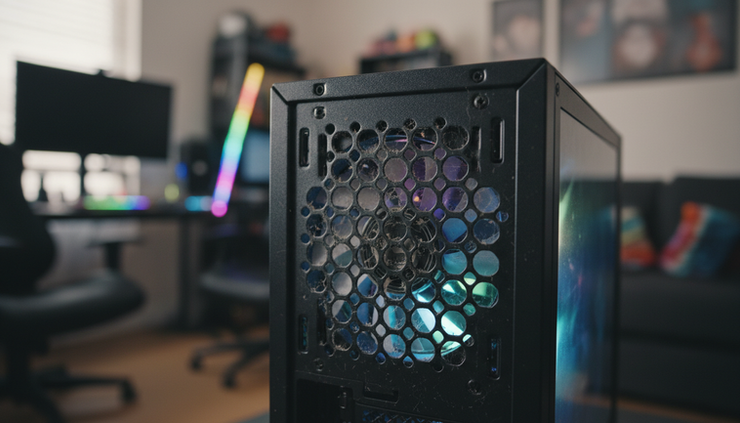
RGB desktop PCs add an unexpected advantage here. The lights are not magic cooling devices, but they make the machine more visible. A tower with a glass side panel and internal lighting is often placed where it can be seen, not hidden under a desk with cables, carpet fluff, and poor airflow around it.

Clean computers run cooler for simple reasons
Heat is normal. Processors, graphics cards, power supplies, and storage devices all create it while working. Cooling fans and vents move that heat out of the computer, but dust makes this job harder.
Dust builds up on:
Front mesh panels
Rear exhaust vents
Fan grilles
Top vents
External air filters
The floor area around the computer
Even when dust sits outside the case, it can still restrict airflow. Fans then spin faster to pull in or push out the same amount of air. That can lead to more noise, higher temperatures, and occasional slowdowns when the system reduces performance to protect itself.
A clean computer does not mean a spotless showpiece. It means the air paths around the device are clear enough for cooling to work as designed.
Great news! If your fan noise has gradually gotten louder, checking for dust and ensuring proper placement are two super easy fixes you can try first!
RGB desktops make airflow problems easier to spot
Traditional desktop towers often end up under desks, close to skirting boards, pressed into corners, or surrounded by boxes and cables. That placement hides dust and blocks vents. Out of sight, the computer gets ignored until it sounds like a small vacuum cleaner.
RGB desktop systems tend to avoid that fate. Because they are designed to be seen, they are usually placed on a table, side stand, shelf, or open surface. That visibility helps in three practical ways.
Dust is easier to notice.
Lighting and clear panels make dust on vents, mesh, and fan areas much more obvious.
Air gaps are easier to judge.
When a tower is in view, it is simpler to see whether the rear exhaust is too close to a wall or whether the side panel is pressed against furniture.
Problems are harder to ignore.
A visible computer invites quick checks. A hidden tower under a desk gathers dust in silence.
RGB lighting does not automatically mean better cooling. A poorly placed RGB case can still overheat. The real benefit is behavioural: people clean and care for things they can see.
Keep the outside clean without opening the case
Most routine PC care can happen from the outside. The goal is to remove loose dust from vents and surrounding surfaces without pushing dirt deeper into the device.
Before cleaning, shut the computer down properly and unplug it from the mains. Let it sit for a few minutes so fans stop fully.
Safe external cleaning habits include:
Use a microfibre cloth on the case exterior and nearby surfaces.
Gently wipe front mesh panels and top vents.
Use a soft brush to loosen dust from grilles.
Vacuum the floor around the computer, not the inside of the machine.
Keep pet hair, crumbs, and fabric fluff away from intake areas.
Cleaning Your Machine Safely
When cleaning your machine, it's important to avoid overdoing it, as this can push dust into areas where it wasn't already present.
Using Compressed Air
Compressed air can be an effective tool for cleaning, but it should be used with caution:
Short Bursts: Use short bursts rather than long sprays to minimize the risk of pushing dust further in.
Keep the Can Upright: Always hold the can upright to prevent liquid propellant from escaping.
Avoid Over-Spinning Fans: Be careful not to blast fans so hard that they spin wildly, as this can cause damage.
Let It Dry: If you notice any liquid propellant, stop using the can and allow everything to dry fully before reconnecting power.
Do not spray cleaning liquid directly onto the computer. If a case panel needs a wipe, apply a small amount of suitable cleaner to the cloth first, then wipe gently. Keep moisture away from ports, vents, buttons, and seams.
A good rule is simple: clean around airflow paths, but do not force anything into them.
Place the computer where air can move
Placement can undo even the best cooling design. A powerful system needs breathing room, especially around intake and exhaust areas.
Try to keep space around the front, back, top, and side vents. The rear of the case is especially important because warm air often exits there. If that hot air hits a wall and circles straight back into the computer, cooling becomes less effective.
Avoid these common heat traps:
Better placement | Placement to avoid |
On a hard, raised surface | Directly on thick carpet |
Several centimetres from walls | Flush against a wall or cabinet |
Open sides and rear | Wedged between furniture |
Away from radiators | Near heat sources |
Clear top vents | Items stacked on top |
Carpet is a common problem in UK homes. It traps dust and can block bottom vents or power supply intakes. If the computer must sit low, place it on a solid platform rather than directly on the floor.
Also think about the room itself. A computer in a warm, poorly ventilated corner will struggle more than the same machine in open air. You do not need a cold room, but no fan setup can work well if the case keeps recycling warm air.

Use software to watch temperatures before trouble starts
Temperature monitoring software gives useful clues without opening the computer. Many tools can show readings for the CPU, graphics card, storage drives, and motherboard sensors. Some motherboard and graphics card makers also provide their own utilities.
The exact “normal” temperature varies by component, workload, case design, and room temperature. A computer will run warmer during gaming, video editing, or large updates than it will while browsing the web. What matters most is pattern.
Look for signs such as:
Temperatures rising higher than they used to during the same task
Fans becoming loud during light use
Sudden performance drops in games or creative software
The case feeling unusually warm around exhaust areas
Shutdowns or restarts during demanding tasks
Check readings at idle, then again during a typical workload. Write down rough numbers if needed. If temperatures climb over time, it could point to dust build up, blocked vents, poor placement, or failing fans.
Software does not replace physical care, but it helps confirm whether your cleaning and placement changes are working.
Build a simple maintenance routine
Computer maintenance works best when it becomes ordinary. No dramatic teardown, no panic cleaning, no waiting until the fans sound strained.
A practical routine might look like this:
Weekly Wipe nearby surfaces and check that vents are not blocked.
Monthly Dust external grilles, clean the surrounding floor, and inspect cables.
Every few months Check temperature readings during normal use and compare them with past behaviour.
After moving furniture Recheck airflow space around the case.
RGB systems make this routine easier because the tower naturally stays in view. Treat that visibility as a built-in reminder. If the lighting shows dust on the front mesh or glass, deal with it early.

Keep it cool by keeping it visible
A cool computer starts with clear airflow. Dusting the outside, giving the case room to breathe, and checking temperatures with software are safe habits that protect performance without opening the device.
RGB desktops have a practical edge because they are easier to see. That makes dust, blocked vents, and poor placement harder to miss. A traditional hidden tower can stay healthy too, but it needs the same attention.
Keep the machine clean, raised, and ventilated. Check it before it gets noisy. A few minutes of care now can mean quieter fans, steadier performance, and a computer that lasts longer.
If your machine needs a thorough clean, like many of ours do, take it to WOW IT WORKS for a complete service. This will simplify future maintenance.


Comments